Large-format banners are a powerful way to grab attention at events, trade shows, storefronts, and promotions. But when using AI tools like ChatGPT to generate banner graphics, many people end up with blurry, low-quality images simply because their prompts aren’t specific enough.
In this guide, you’ll learn exactly how to prompt ChatGPT to generate a print-ready, high-resolution 8×8 ft banner graphic that looks sharp and professional when printed.
Why Prompting Matters for Large Banners
An 8×8 ft banner is viewed from a distance and printed at a massive scale. If the prompt doesn’t clearly define size, resolution, and print requirements, the result may look fine on a screen but fall apart when printed.
A good prompt ensures:
- Crisp visuals at large scale
- Correct aspect ratio
- Readable typography from far away
- Print-friendly colors and details
Essential Details to Include in Your Prompt
When prompting ChatGPT (or any AI image tool), always include the following:
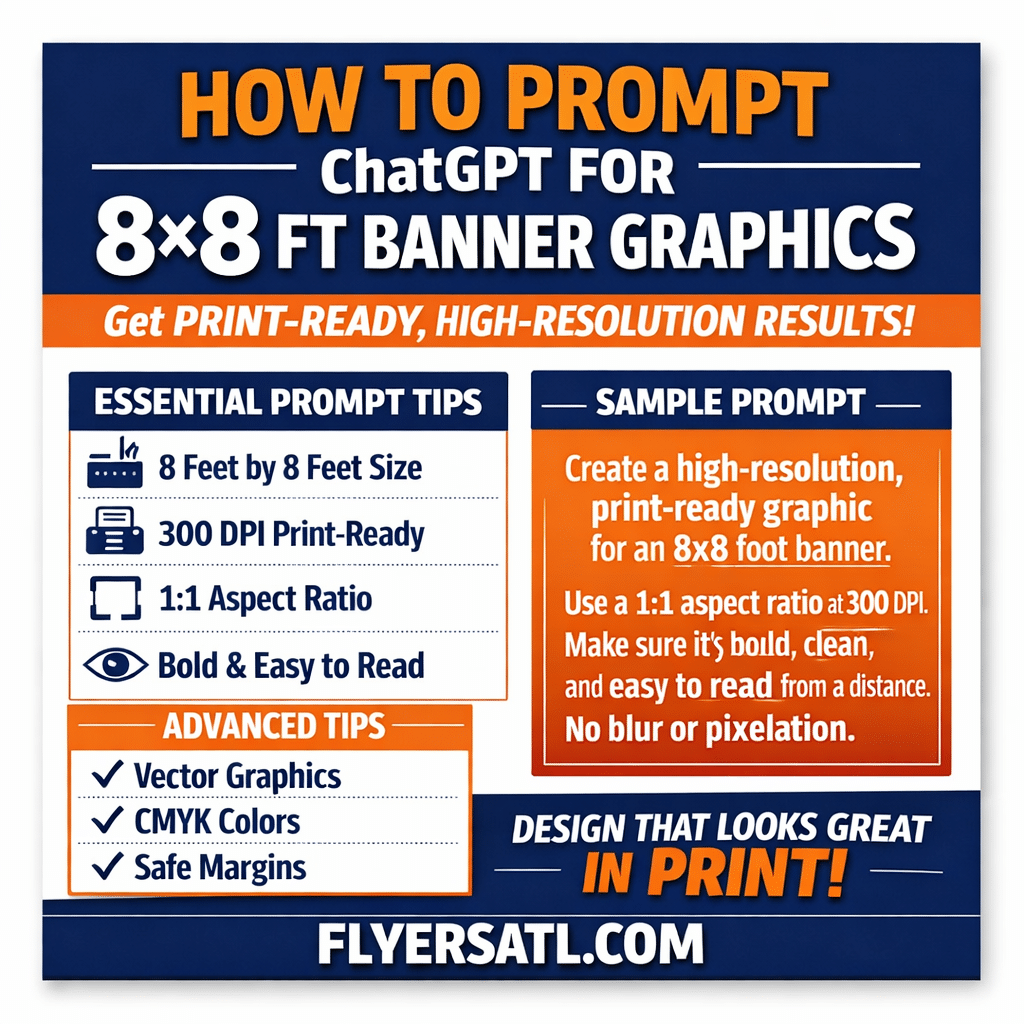
1. Exact Physical Size
Always state the real-world dimensions:
- 8 feet by 8 feet
- Avoid vague terms like “large banner”
2. Aspect Ratio
An 8×8 banner is square, so specify:
- 1:1 aspect ratio
3. Print Resolution
For professional printing, ask for:
- 300 DPI
- Print-ready quality
4. Viewing Distance
Banners are designed to be seen from several feet away:
- Large text
- Bold visuals
- High contrast colors
5. Usage Context
Explain where the banner will be used:
- Trade show
- Storefront
- Event
- Conference backdrop
This helps the AI choose the right layout and visual style.
Copy-Paste Prompt for an 8×8 ft Banner
Use this prompt as a starting point:
Create a high-resolution, print-ready graphic for an 8×8 foot banner.
Use a 1:1 aspect ratio and design at 300 DPI, suitable for large-format printing.
The design should be bold, clean, and easy to read from a distance, with high contrast colors and sharp details.
Avoid small text, thin lines, or unnecessary clutter.
Ensure the final image remains crisp and professional when printed at full size, with no blur or pixelation.
Adding Text to Your Banner
If your banner includes messaging, include it directly in the prompt:
Include the following text:
Headline: “YOUR MAIN MESSAGE” (large, bold, highly readable)
Subheading: “Optional supporting text”
Use thick, clear typography designed for large-format visibility.
Advanced Tips for Better Print Results
To improve quality even further, add one or more of these instructions:
- “Use vector-style graphics where possible.”
- “Design with CMYK-friendly colors for professional printing.”
- “Avoid very fine details or thin outlines.”
- “Leave safe margins around the edges for trimming.”
These small details can make a big difference when the banner goes to print.
Final Thoughts
Creating a high-quality 8×8 ft banner with AI isn’t about luck — it’s about clarity. The more specific your prompt is about size, resolution, and print needs, the better your results will be.
If you treat ChatGPT like a professional designer and give it clear instructions, it can deliver graphics that look great not just on screen, but in the real world.