
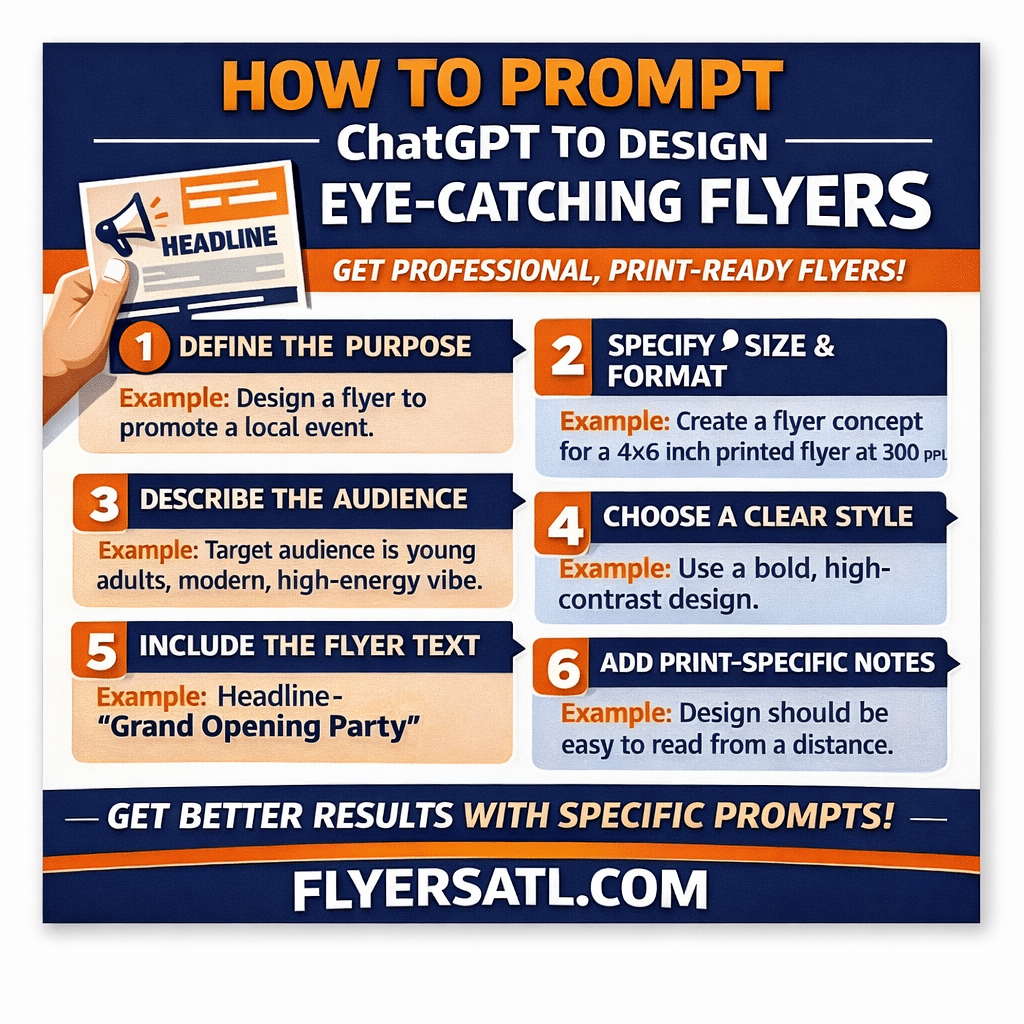
I tools like ChatGPT have made flyer design faster and more accessible than ever. But the quality of your flyer doesn’t depend on the tool — it depends on how well you prompt it.
If you’ve ever asked ChatGPT to “make a flyer” and ended up with something generic, cluttered, or low-quality, this guide is for you. Below, you’ll learn exactly how to prompt ChatGPT to create flyers that look professional, print well, and actually get attention.
Why Prompting Matters for Flyer Design
ChatGPT works like a creative assistant, not a mind reader. If your prompt is vague, the output will be vague too.
A strong prompt helps ChatGPT understand:
- The goal of the flyer
- The audience
- The size and format
- Whether it’s for print or digital
- The design style you want
The clearer the instructions, the better the design concept.
Step 1: Define the Purpose of the Flyer
Start your prompt by explaining what the flyer is for.
Examples:
- Event promotion
- Business advertising
- Sale or discount
- Grand opening
- Nightlife or entertainment
Example prompt line:
Design a promotional flyer for a local business event.
Purpose shapes layout, typography, and messaging — so don’t skip this step.
Step 2: Specify Flyer Size and Format
Always tell ChatGPT the exact size of the flyer.
Common flyer sizes:
- 4×6 inches
- 5×7 inches
- 8.5×11 inches
Example:
Create a flyer design concept for a 4×6 inch flyer.
If it’s for print, add:
The flyer should be print-ready at 300 DPI.
Step 3: Describe the Target Audience
Design changes drastically depending on who you’re trying to reach.
Include details like:
- Age group
- Industry
- Vibe (professional, fun, luxury, edgy, etc.)
Example:
Target audience: young adults, modern, urban, high-energy vibe.
This helps ChatGPT choose colors, layout, and tone.
Step 4: Choose a Clear Design Style
Don’t assume ChatGPT knows your aesthetic. Tell it explicitly.
Examples:
- Bold and high-contrast
- Clean and minimalist
- Modern and professional
- Fun and colorful
- Luxury and premium
Example:
Use a bold, high-contrast design with large typography.
Step 5: Include the Flyer Text in the Prompt
If your flyer has text, provide it clearly and in order of importance.
Example:
Include the following text:
Headline: “Grand Opening This Weekend”
Subtext: “Food, drinks, and live music”
Call to Action: “Visit us today”
This prevents ChatGPT from inventing filler text or misplacing content.
Step 6: Add Print-Specific Instructions
For best results, especially for professional printing, include technical notes.
Helpful additions:
- Avoid small text and thin lines
- High contrast for readability
- Leave safe margins
- CMYK-friendly colors
Example:
Design should be easy to read from a distance, with no small text or fine details.
Copy-Paste Prompt Example for Flyer Design
Here’s a full example you can reuse:
Create a high-quality flyer design concept for a 4×6 inch printed flyer at 300 DPI.
Purpose: Promote a local business event.
Target audience: Young adults, modern and energetic.
Style: Bold, clean, and high-contrast.Include the following text:
Headline: “Grand Opening Party”
Subtext: “Music, drinks, and special offers”
Call to Action: “This Saturday – Don’t Miss It”The design should be easy to read from a distance, avoid small text or thin lines, and be suitable for professional printing.
Final Thoughts
When it comes to flyer design with ChatGPT, prompt clarity is everything. Treat your prompt like a creative brief — the more specific you are about size, style, purpose, and audience, the better your results will be.
With the right prompting, ChatGPT can help you plan layouts, refine messaging, and create flyer concepts that look polished and effective before they ever go to print.